

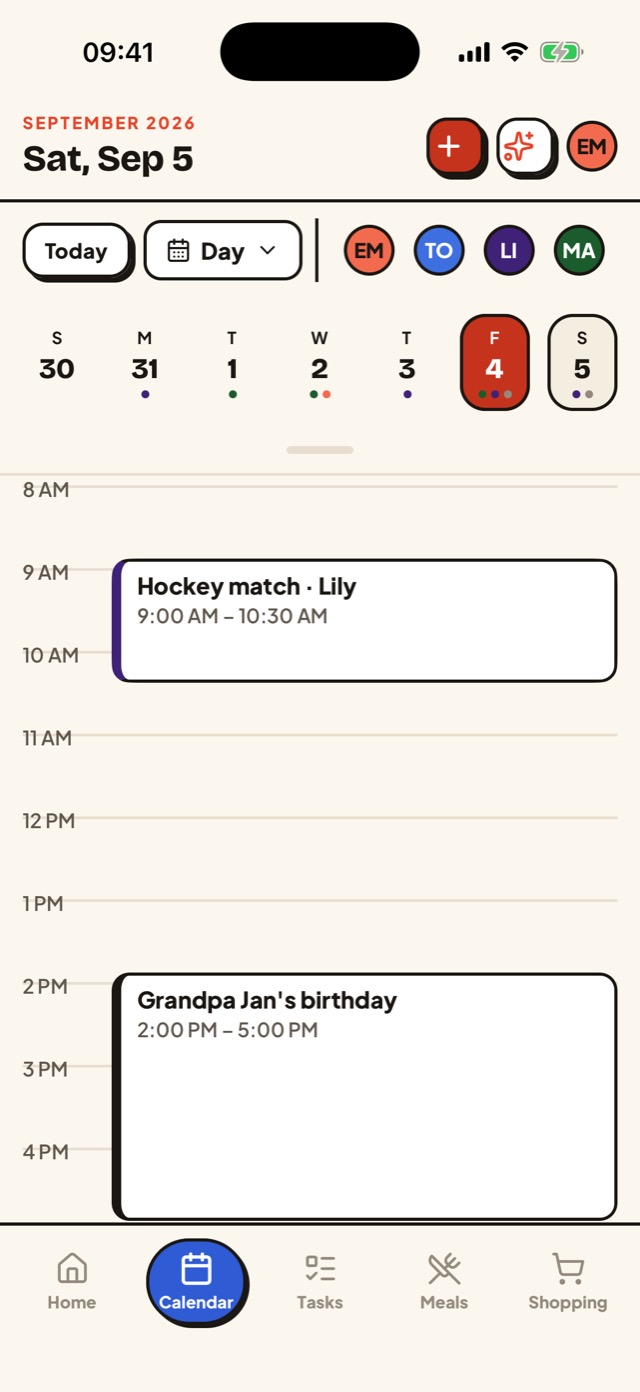
Two kids, three teams, one parent with the app.
The coach posts the schedule in TeamSnap and it's perfect — on the phone of the parent who set up the account. The other parent asks "is there practice Thursday?", the grandparents plan a visit on game day, and the carpool runs on screenshots. Wall-mounted family displays sell for a few hundred dollars mostly to fix this.
You don't need a screen. TeamSnap gives every member a calendar link for the team schedule. Paste it once into a shared family calendar and everyone in the family sees the same practices and games, in the team's own color, next to everything else. When the coach moves a game, it moves for everyone.
Subscribe to your TeamSnap schedule.
1. Find the calendar link in TeamSnap
In a browser (this is where the feature lives): log in at teamsnap.com, open your team, click the Schedule tab, then Settings, then Sync Calendar / Export. TeamSnap shows a calendar URL and lets you pick the full schedule or games only.
On iPhone: open the team in the TeamSnap app, tap Schedule, tap the share icon at the top left, then Subscribe. On Android: the TeamSnap app has no export option — use the browser steps above; your phone's browser is fine.
2. Copy the link, don't download a file
Copy the URL. It may start with webcal:// or https:// and come from teamsnap.com, go.teamsnap.com or ical-cdn.teamsnap.com — all of those work. Don't download an .ics file: that's a snapshot, and it won't update when the schedule changes.
3. Subscribe in Gezin
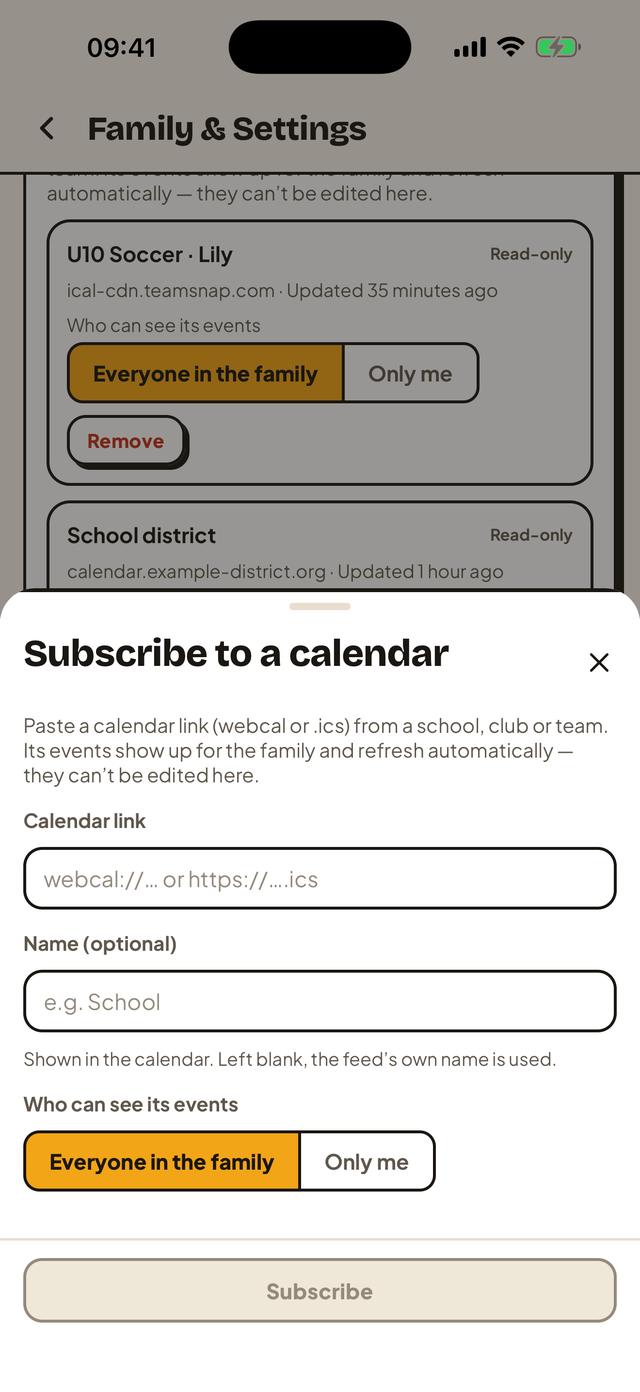
Open Family & Settings in Gezin (tap your initials at the top right). Scroll to Connections, find the Subscribed calendars card and tap Subscribe to a calendar link. Paste the URL into Calendar link. Give it a name if you like ("U10 soccer") — leave it blank and Gezin uses the name TeamSnap sends.
4. Choose who sees it
Under Who can see its events pick Everyone in the family, then tap Subscribe. Gezin fetches the schedule right away, then about every hour and whenever the app is opened. Repeat for the second kid's team; each feed gets its own color.
TeamSnap steps checked on September 13, 2026 against TeamSnap's help article "Subscribe to a Team Schedule". Menus move; if something no longer matches, let us know. TeamSnap is a trademark of its owner; Gezin is not affiliated with it.
What it looks like.
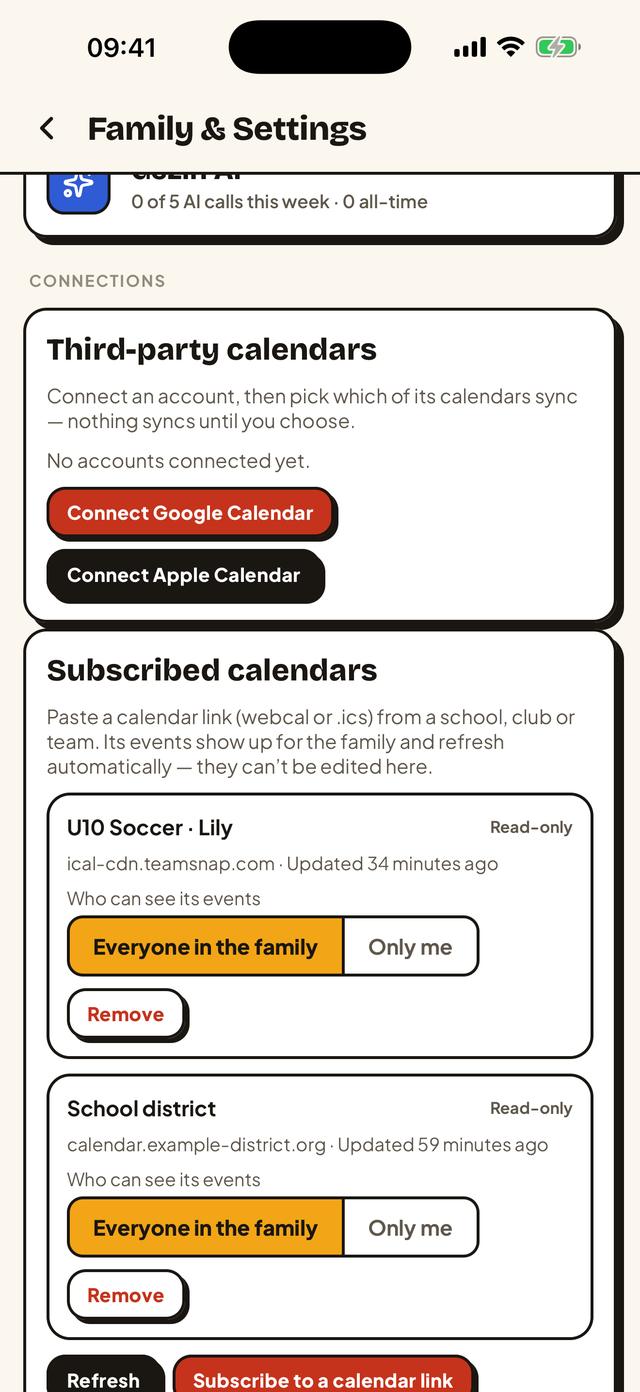
Everything else is already there.
Fresh within the hour
Gezin re-reads every subscribed calendar about once an hour and when you open the app. TeamSnap notes that Google Calendar can take up to 24 hours to reflect a change.
School next to sports
Subscribe to the school district calendar too, and forward the school emails that don't come as a feed. One calendar, every commitment.
Who's where, at a glance
Every family member has a color. Filter to one kid to see their week, or see the whole family to spot the Saturday with two games at once.
Add your own next to it
Team events are read-only, so add your own event beside them: "Pack cleats", "Mom drives", with a reminder for whoever needs it.
Android, iPhone, browser
Each parent uses their own phone; grandparents can use the web app. Same family, same calendar, same schedule.
Not just TeamSnap
Any calendar link works: SportsEngine, GameChanger, a league website with an iCal feed, the school district. Same four steps.
Questions, answered.
Does this work on Android?
Yes, but the link has to come from TeamSnap's website. TeamSnap's Android app has no subscribe or export option, so open teamsnap.com in a browser (on your phone is fine), copy the link from Schedule, Settings, Sync Calendar / Export, and paste it into Gezin on Android. Gezin itself works the same on Android, iPhone and the web.
What if the link stops working after the season?
TeamSnap links belong to a team and a season. When a new season starts, or you are moved to a new team, copy the new link from that team's Schedule and subscribe again in Gezin. You can remove the old feed from the Subscribed calendars card; its events disappear from the family calendar.
Can I subscribe to more than one team?
Yes. Subscribe to each team's link separately, give each one a name, and every team gets its own color on the calendar. If TeamSnap offers you a combined schedule across all your teams, that single link works too.
How fast do schedule changes show up?
Gezin fetches every subscribed calendar about once an hour, and again when you open the app. TeamSnap notes that Google Calendar and other calendar apps can take up to 24 hours to reflect changes to a subscribed calendar.
Can I edit a TeamSnap event in Gezin?
No. A subscription is read-only: Gezin reads the schedule and cannot change it. Changes the coach makes in TeamSnap flow through to you, not the other way round. To add your own note, such as who is driving, create a separate event next to it.
Read next
- Forward the school email, Gezin finds the dates — ParentSquare, ClassDojo and district newsletters.
- Everything Gezin does — calendar, tasks, meals, recipes and shopping for the whole household.
- Who makes Gezin — and where to get the app.